Quality
How to reduce PDF file size without losing quality
Truly lossless methods rarely save much: PDFnook's lossless pass changed four real PDFs by −11%, ±0%, ±0% and +9%. What does work without visible loss is lowering photo resolution only to what the page needs while keeping text as text: that cut a 5.72 MB brochure by 55% with all of its text still selectable.
“Without losing quality” covers two different things. One is lossless: the file is rewritten and every pixel and character stays identical. The other is no visible loss: some image data is thrown away, but not enough to notice at the size the document will be read or printed. The first is safe and usually small; the second is where the big savings are. We measured both on four public PDFs (the method and files are on the guides page).
What a lossless pass can save
A lossless pass rewrites the file's structure: it keeps only the current version of each object, packs small objects into compressed object streams (ISO 32000-1, section 7.5.7) and drops leftovers from earlier saves (section 7.5.6). It never touches images or text. On our files:
| File | What it is | Original | Lossless pass | Change |
|---|---|---|---|---|
| Kennecott Mines brochure | Designed brochure: vector text over large photos, 2 A2 pages | 690 KB | 613 KB | −11% |
| Wrangell-St. Elias brochure | Each A2 page is one large JPEG with a hidden OCR text layer | 5.72 MB | 5.72 MB | ±0% |
| Ford speech scan | Typewritten page scanned in greyscale, with an OCR text layer | 707 KB | 705 KB | ±0% |
| IRS Publication 17 | Text-only, 142 pages, tagged for accessibility | 2.95 MB | 3.21 MB | +9% |
PDFnook “Keep text” method, Chrome. Text and images are byte-for-byte the same before and after.
The only real saving came from the brochure that had been saved 4 times. The IRS guide got bigger: it was already written compactly, and the rewritten copy of its 62,494 accessibility tags and other small objects came out larger. PDFnook reported that the result was not smaller and to keep the original:
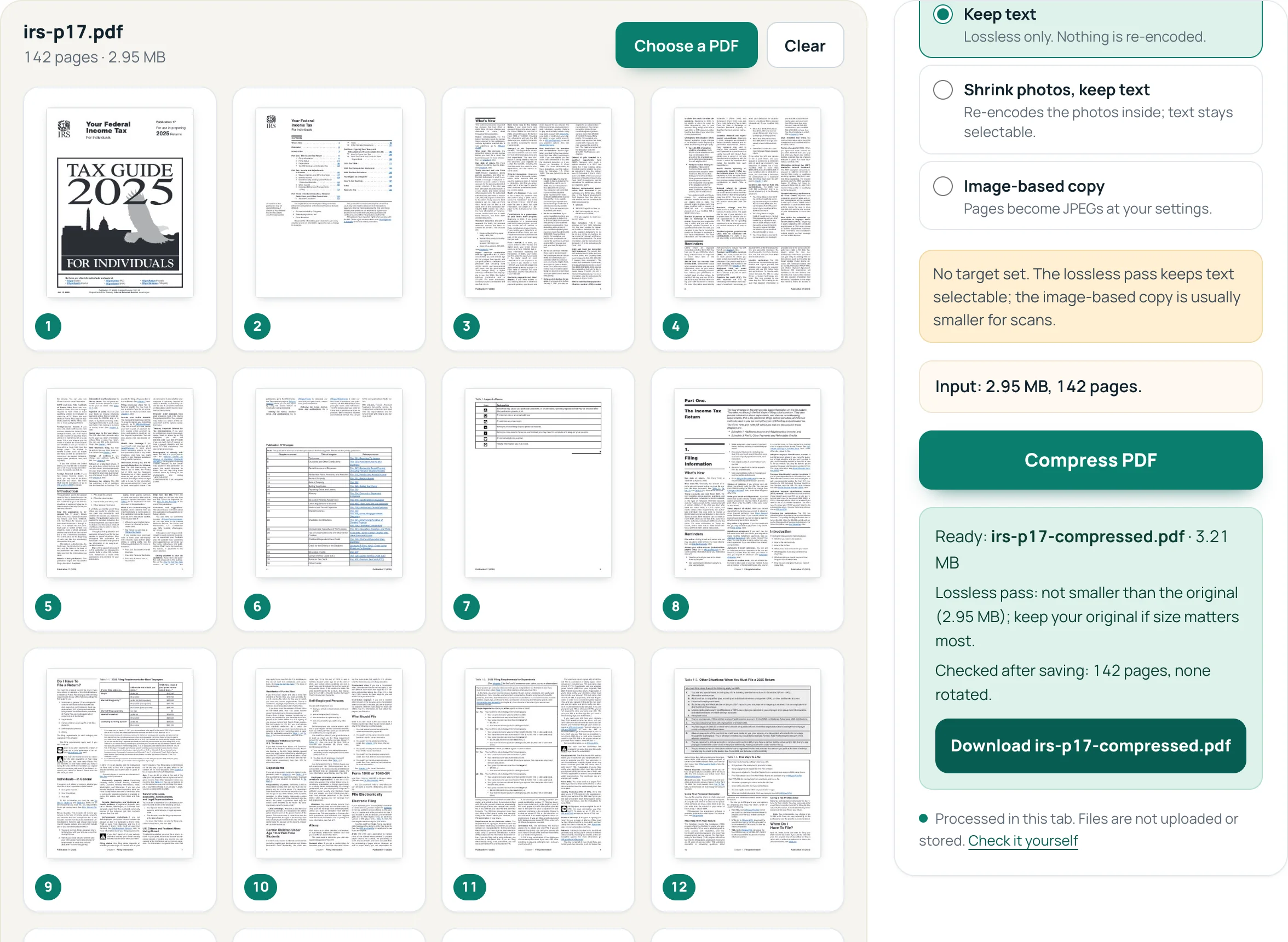
Lossless pass: not smaller than the original (2.95 MB); keep your original if size matters most.Keeping your original is the right call whenever a lossless result is not smaller.
Where the real savings are: photos at the right resolution
Most large PDFs are large because of photos or scans (see why a PDF gets large). A photo only needs enough pixels for the size it is shown at. PDFnook's Shrink photos, keep text re-encodes each JPEG photo so its long side is at most the page's long side × the chosen DPI ÷ 72 (a PDF point is 1/72 inch), and leaves text, fonts, links and drawings alone. On the Wrangell-St. Elias brochure, whose two pages are 300 DPI scans of the printed artwork:
| Photo setting | Size | Change | Selectable text |
|---|---|---|---|
| Original (300 DPI) | 5.72 MB | all | |
| 200 DPI, High | 5.57 MB | −3% | all |
| 144 DPI, Medium | 2.55 MB | −55% | all |
| 120 DPI, Medium | 1.97 MB | −66% | all |
| 96 DPI, Low | 1.12 MB | −80% | all |
| 72 DPI, Very low | 660 KB | −89% | all |
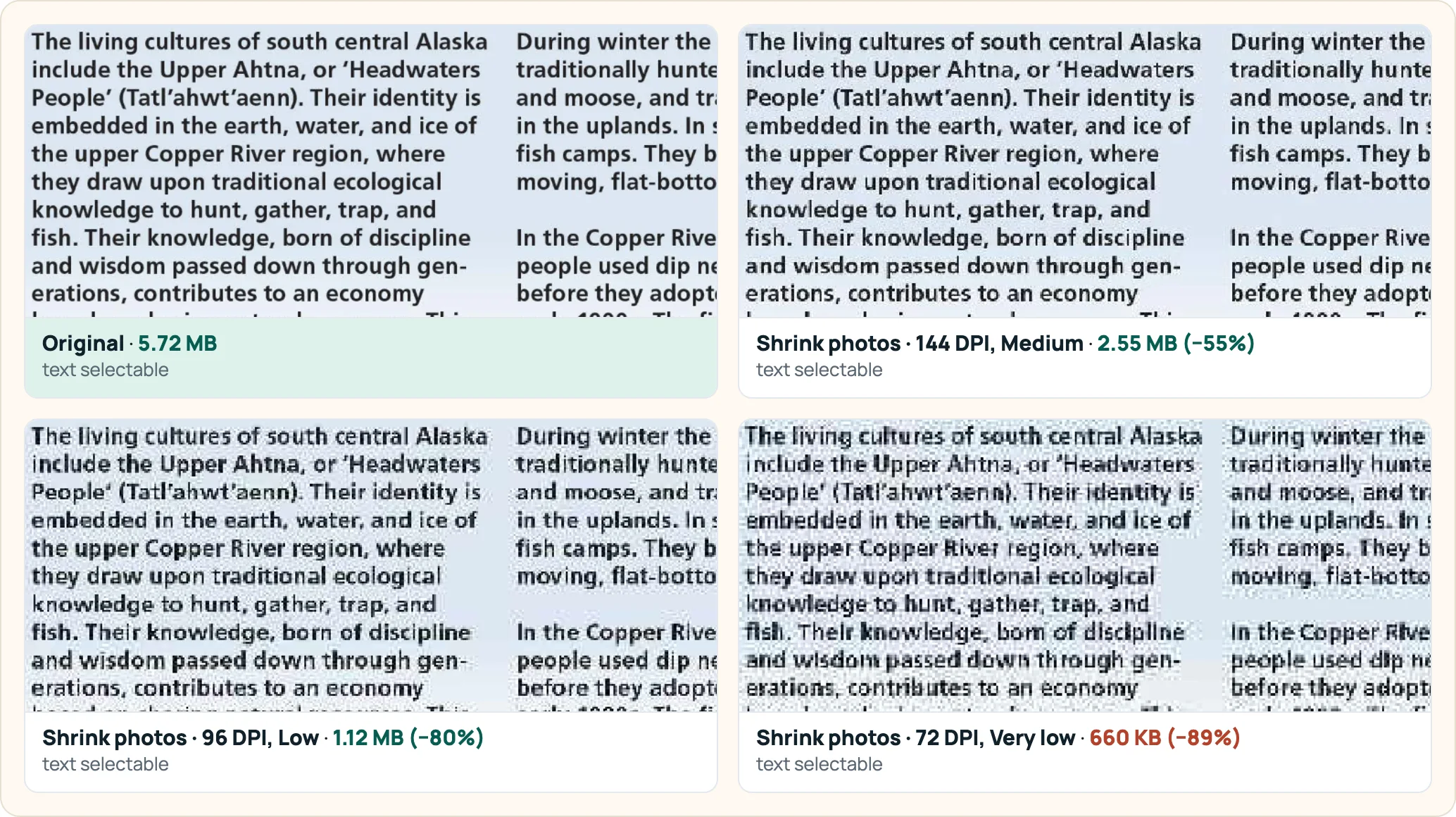
The first step barely helps (−3%) and the steps below 96 DPI cost visible detail, so 144 DPI is where this file loses most of its size and none of its legibility. That matches the arithmetic: at 144 DPI the photo on this A2 page keeps 3,368 pixels on its long side, more than a 4K screen is tall (2,160).
The one thing not to do: turn text into pictures
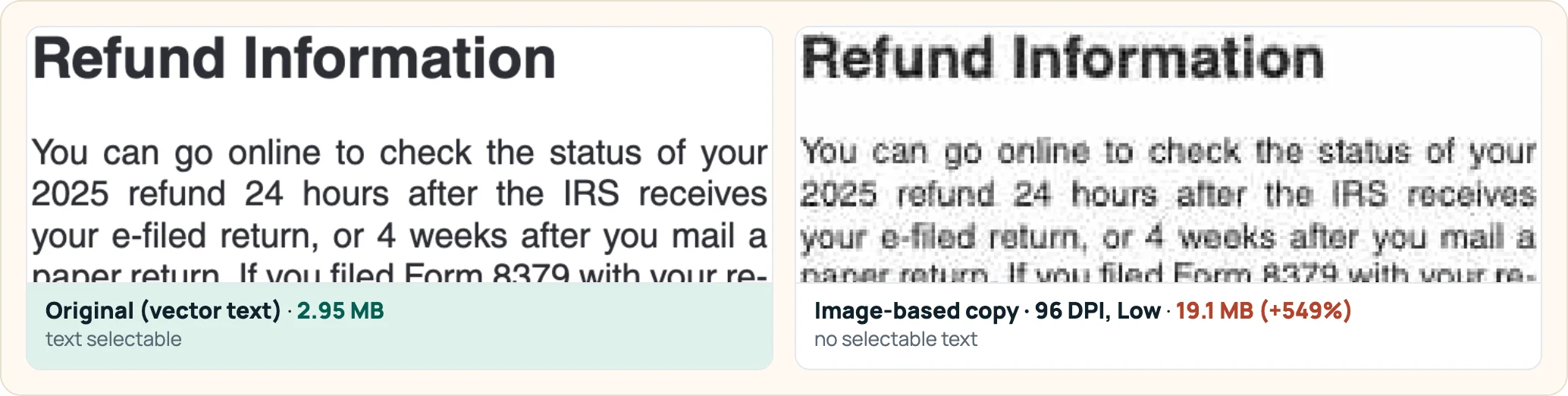
An “image-based” compressor draws every page as a JPEG. For scans that is fine, but for a text PDF it destroys quality and often size. The IRS guide as an image-based copy at 96 DPI was 19.1 MB instead of 2.95 MB, and its text was soft and no longer selectable:
What to use, by kind of file
| Your PDF | Method | What you keep |
|---|---|---|
| Exported from Word or a website, mostly text | Keep text (lossless); if it is still too big, remove or split pages | Everything |
| Report, brochure or form with photos | Shrink photos, keep text at 144 DPI, Medium, then check the photos at the zoom you use | Text, links, form fields; in our brochure test the result looked the same on screen |
| Scanned pages | Shrink photos at 144 DPI keeps OCR text; an image-based copy is smaller but drops it | See the scanned PDF guide |
| Photos you are turning into a PDF | Choose A4 or Letter pages first, then shrink photos | See photos to PDF |
Questions
Is any PDF compression truly lossless?
Yes: rewriting the structure, dropping old saved versions and compressing objects with Flate (ISO 32000-1, section 7.4.4) lose nothing. It is just rarely large: −11% at best in our four files.
What DPI keeps a PDF looking the same?
For our brochure, 144 DPI looked the same as the 300 DPI original on screen and saved more than half the size. Check the result at the zoom you will actually use; fine print shows problems first.
Will compressing remove links or form fields?
Not with Keep text or Shrink photos, keep text: they only rewrite structure or photos. An image-based copy turns pages into pictures, so links and fields are gone.
Sources
- ISO 32000-1:2008, Document management — Portable Document Format (Adobe-hosted copy) — sections cited in the text
- Wrangell-St. Elias National Park and Preserve official brochure — test file
- IRS Publication 17 (2025), Your Federal Income Tax — test file
- Kennecott Mines brochure, Wrangell-St. Elias National Park and Preserve — test file
- Gerald R. Ford, “Mr. Ford of Michigan” speech draft (Ford Congressional Papers, Box D13) — test file