Scans
How to reduce the size of a scanned PDF and keep it readable
A scanned PDF is a picture of each page, so its size depends on pixels and image compression, not on the words. On a scanned typewritten speech draft from Gerald Ford's congressional papers, shrinking the scan to 144 DPI kept its searchable OCR text and cut 21%; an image-based copy at 96 DPI cut 91% (to 66 KB) and stayed readable, but the text could no longer be searched.
Why scans are large: count the pixels
A scanner records a grid of dots. At 300 dots per inch a US Letter page (8.5 × 11 in) is 2,550 × 3,300 = 8,415,000 pixels. Stored uncompressed that is 8.03 MB in greyscale (1 byte per pixel) or 24.1 MB in colour (3 bytes). JPEG brings that down a lot, but every halving of the DPI still removes three quarters of the pixels: 150 DPI is 2,103,750 pixels.
The two scans in our test set:
| Scan | Page | Pixels | Stored as |
|---|---|---|---|
| Ford speech scan | 886 × 1,245 pt (12.3 × 17.3 in) | 3,679 × 5,172, greyscale, ≈ 299 DPI | 248 KB JPEG |
| Wrangell-St. Elias brochure | A2 (16.5 × 23.4 in), 2 pages | 4,961 × 7,016, colour, 300 DPI | 5.54 MB JPEG (2 pages) |
Both also carry an invisible OCR text layer, so a reader can search and copy the words. Keeping that layer is the main decision when you shrink a scan.
Two ways to shrink a scan
- Shrink photos, keep text re-encodes the scanned image at a lower resolution and leaves the OCR layer alone, so search still works.
- Image-based copy redraws each page as a new JPEG. It is the strongest option, but the OCR text is not carried over.
| Setting | Size | Change | Searchable text |
|---|---|---|---|
| Original | 707 KB | yes (1,324 characters) | |
| Shrink photos, 144 DPI, Medium | 561 KB | −21% | yes (1,324 characters) |
| Shrink photos, 96 DPI, Low | 496 KB | −30% | yes (1,324 characters) |
| Shrink photos, 72 DPI, Very low | 478 KB | −32% | yes (1,324 characters) |
| Image-based copy, 200 DPI, High | 366 KB | −48% | no |
| Image-based copy, 144 DPI, Medium | 156 KB | −78% | no |
| Image-based copy, 96 DPI, Low | 66 KB | −91% | no |
| Image-based copy, 72 DPI, Very low | 35 KB | −95% | no |
Ford speech scan, 2 pages: a library cover sheet and the scanned typewritten page.
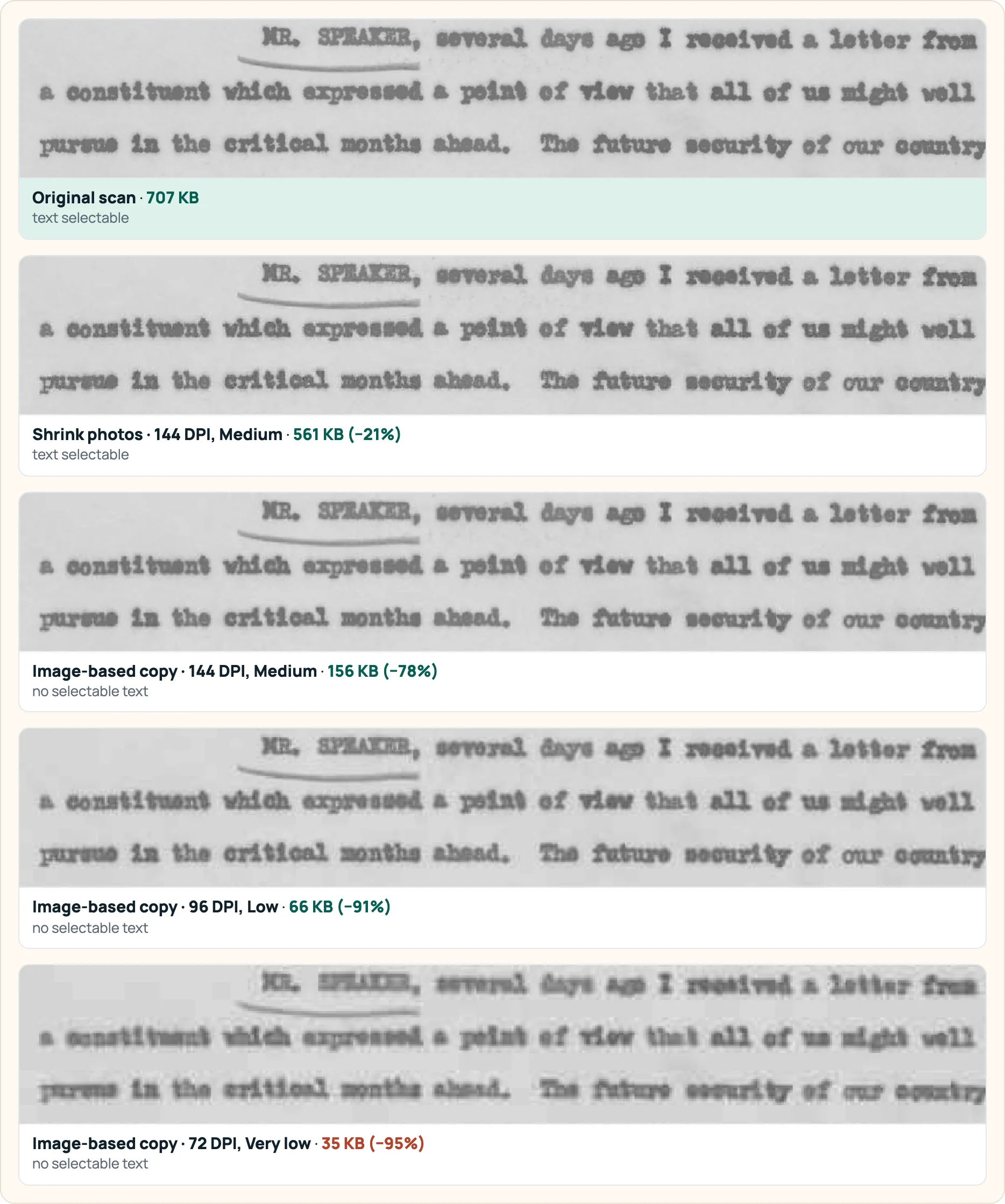
Why does keeping the text cost so much more here? 442 KB of this file is a font, not the scan, and image settings cannot shrink a font (details); the image-based copy drops it along with the OCR layer. On the Wrangell-St. Elias scans, which have no such font, keeping the text cost little: Shrink photos at 144 DPI reached −55% with all 11,985 OCR characters, against −65% for an image copy at the same DPI.
Hitting an upload limit
Portals often set a limit per file. With a target, PDFnook tries the gentlest method first and steps down until the file fits. For the speech scan with a 200 KB target:
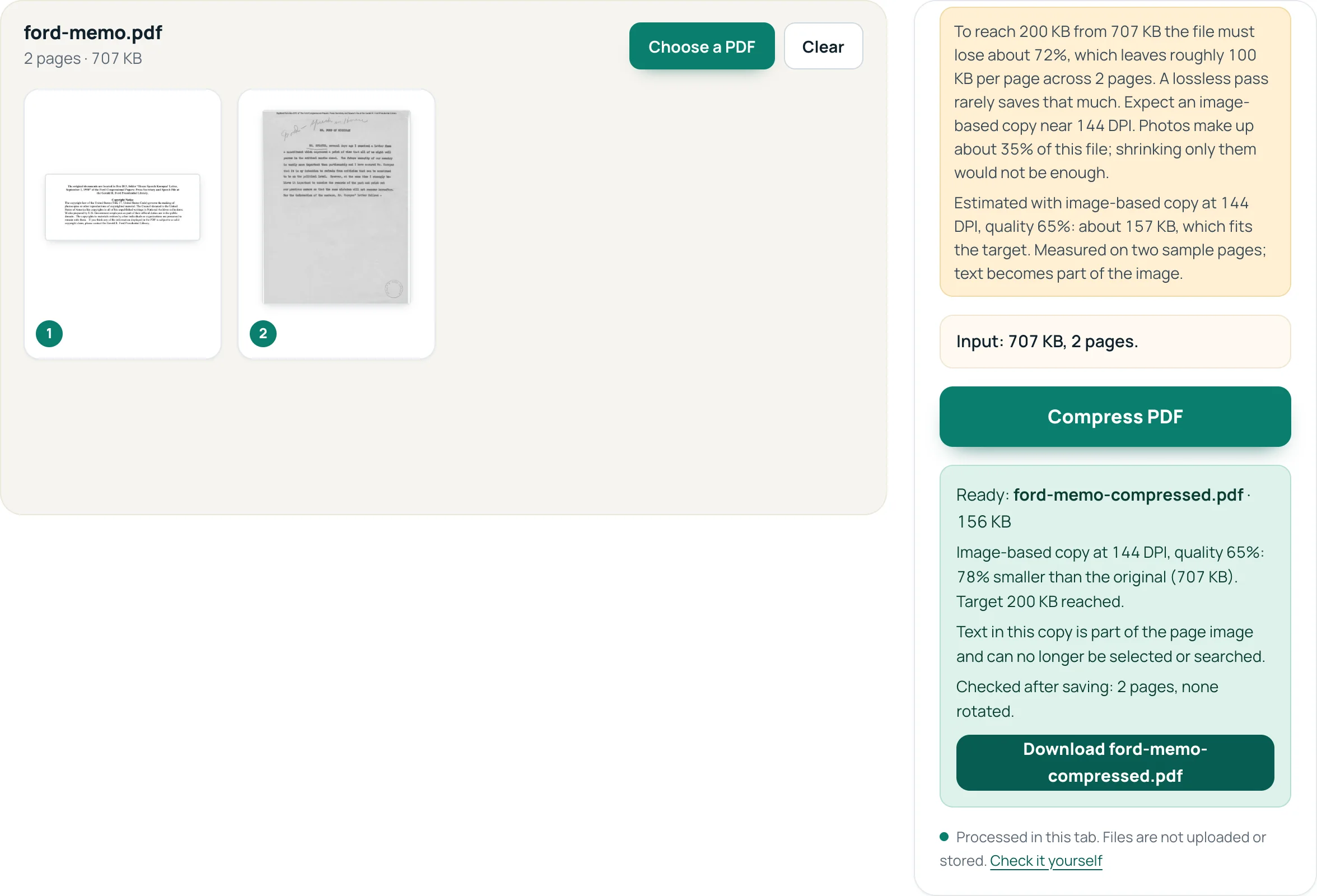
Image-based copy at 144 DPI, quality 65%: 78% smaller than the original (707 KB). Target 200 KB reached.
Presets for common limits: 100 KB, 200 KB and 1 MB. Sending a scan by email instead? See how small it needs to be.
Next time: set it at the scanner
- Resolution. Our typewritten page was still easy to read at 144 DPI and legible at 96, as the panel above shows; halving the DPI removes three quarters of the pixels.
- Greyscale for black-and-white pages. Colour stores 3 values per pixel instead of 1, three times the raw data.
Questions
Why is my scanned PDF so large?
Because each page is a photo of the paper: a colour Letter page at 300 DPI is about 8.4 million pixels before compression. Lower resolution, greyscale and stronger JPEG compression are what make it smaller.
Will my scanned PDF still be searchable after compressing?
With Shrink photos, keep text, yes: the OCR layer is kept (1,324 of 1,324 characters in our test). An image-based copy is not searchable unless you run OCR again.
What DPI should a scanned document be?
For reading on screen, our typewritten page was comfortable at 144 DPI and still legible at 96. That is one page; check yours at the zoom you use, and keep the original if you might need to print or archive it.