Mac
How to reduce PDF file size on a Mac (and why Preview can make it bigger)
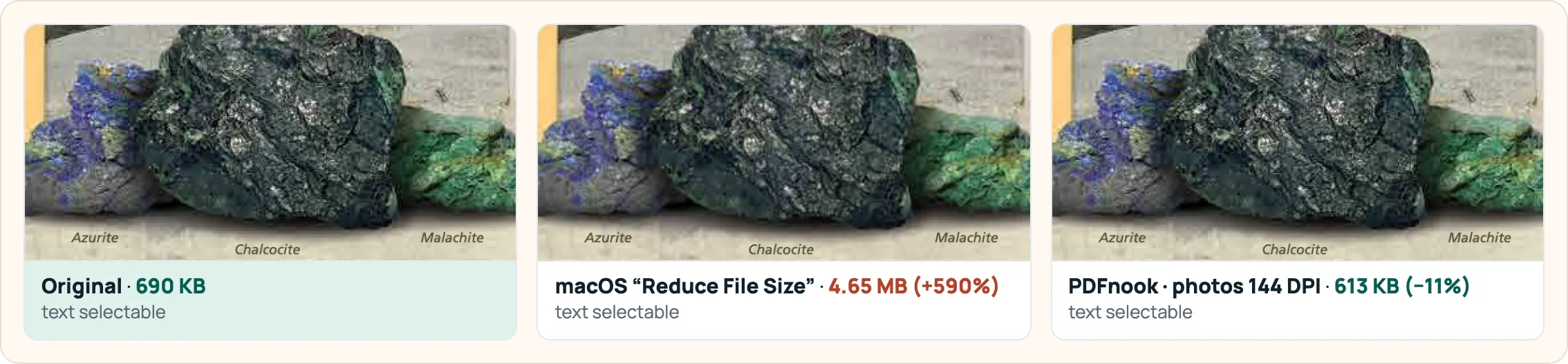
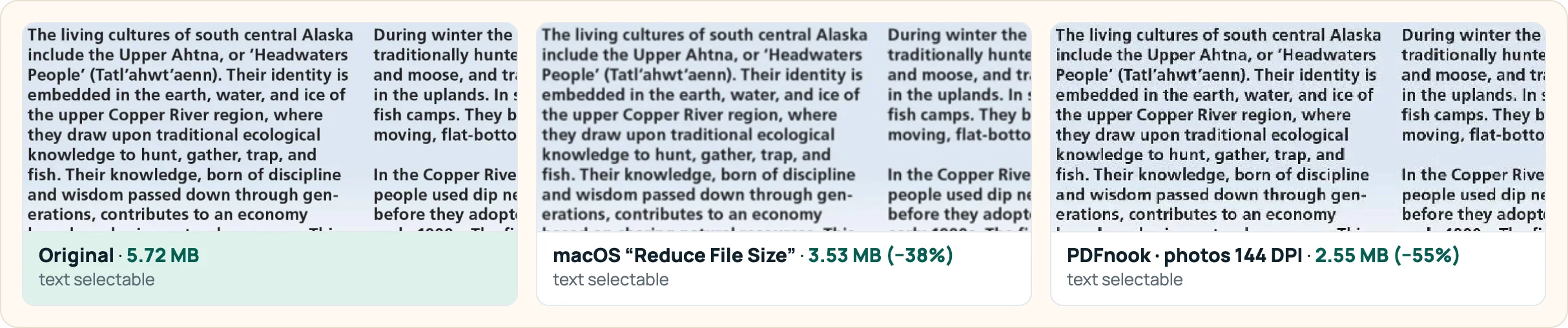
On a Mac, Preview's File › Export with the “Reduce File Size” Quartz filter is the built-in way, but compare the sizes afterwards: when we applied the same filter through macOS 26.2's PDF framework, two of four public PDFs got larger (a 690 KB brochure became 4.65 MB) and a third grew from the re-save itself. Only the photo-heavy file shrank, and even there shrinking the photos to 144 DPI in a browser tool gave a smaller file (2.55 MB vs 3.53 MB) with more pixels kept.
Apple's instructions are short: open the PDF in Preview, choose File › Export, pick Reduce File Size in the Quartz Filter menu and save. The same guide lists export checkboxes as a second way: “Create Linearized PDF” (for faster loading in web browsers), “Optimize images for screen” and “Save images as JPEG” (Apple Preview guide). Apple adds that the result may be lower quality and that size and quality vary. We measured how much they vary.
The test
On a Mac with macOS 26.2 we applied the same filter file Preview lists, /System/Library/Filters/Reduce File Size.qfilter, and the two export options, through PDFKit, Apple's PDF framework, which accepts them as write options. We did not click through Preview's dialog, so treat these as the framework's results; your exported file should be compared the same way, by size. The four public PDFs and the comparison with PDFnook (run in Chrome on the same Mac) are described on the method page.
| File | Original | Reduce File Size filter | Re-save, no filter | PDFnook, photos 144 DPI |
|---|---|---|---|---|
| Kennecott Mines brochure | 690 KB | 4.65 MB (+590%) | 618 KB (−10%) | 613 KB (−11%) |
| Ford speech scan | 707 KB | 1.21 MB (+75%) | 358 KB (−49%) | 561 KB (−21%) |
| IRS Publication 17 | 2.95 MB | 13.2 MB (+349%) | 13.3 MB (+351%) | 3.20 MB (+9%) |
| Wrangell-St. Elias brochure | 5.72 MB | 3.53 MB (−38%) | 5.82 MB (+2%) | 2.55 MB (−55%) |
Text stayed selectable in every column. PDFnook: “Shrink photos, keep text”, 144 DPI, Medium. The Kennecott and IRS files have no photos large enough to re-encode at 144 DPI, so their PDFnook result is essentially the lossless pass.
Why the filter made files bigger
The filter's settings file asks for JPEG images at quality 0.7, 144 DPI, and at most 2,400 pixels on a side. The output did not always follow its own setting:
- Kennecott brochure, 690 KB → 4.65 MB (+590%). The brochure's main photo, a 1,657 × 2,280 pixel JPEG of 216 KB, was written back at the same size with Flate compression, which is lossless (ISO 32000-1, sections 7.4.4 and 7.4.8). Lossless compression of a photograph takes far more bytes: 4.25 MB for that one image.
- Ford speech scan, 707 KB → 1.21 MB. The greyscale JPEG scan (248 KB, 3,679 × 5,172 pixels) was scaled to 1,707 × 2,400 and stored, again with Flate, at 1.10 MB: fewer pixels, four and a half times the bytes.
- IRS Publication 17, 2.95 MB → 13.2 MB. This is not the filter: a plain re-save with no options gives 13.3 MB too. The original keeps its 62,494 tags and links in compressed object streams (section 7.5.7); the re-saved file stores them as plain objects, and about three quarters of it is that uncompressed structure.
The one file that shrank, the Wrangell-St. Elias brochure, is two page-sized JPEGs. The filter scaled them to its 2,400-pixel cap, which on these 23.4-inch-tall A2 pages is about 103 DPI, and saved 38%. PDFnook at 144 DPI kept 3,368 pixels on the long side and still produced a smaller file.
What the two export checkboxes do
| File | Save images as JPEG | Optimize images for screen | Both |
|---|---|---|---|
| Kennecott Mines brochure | −10% | −10% | −10% |
| Ford speech scan | −49% | −17% | −16% |
| IRS Publication 17 | +351% | +349% | +349% |
| Wrangell-St. Elias brochure | +2% | +9% | +9% |
Change against the original, via the PDFKit write options of the same names.
Neither option reliably made our files smaller. The large drop on the Ford scan comes from the re-save itself, not from an option: it rewrote a fully embedded font as small subsets (the font story). “Create Linearized PDF” is about loading in a browser, not size, so we did not test it.
What to do on a Mac
- Look at what the file is. Mostly photos or scans: compress the photos. Mostly text: compression will not help; remove or split pages. A small file with one big font: a plain re-save may do it. The diagnosis guide shows how to tell.
- If you use Preview's filter, compare sizes. Select both files in Finder and press ⌘I, or look at the size column. Keep the original if the export is bigger.
- For photo-heavy PDFs, set the resolution yourself. PDFnook's Compress PDF runs in the browser on your Mac (we tested Chrome), lets you choose 144 DPI instead of a fixed pixel cap, and tells you when the result is not smaller.
Questions
Why did Preview make my PDF bigger?
In our tests the Reduce File Size filter wrote some JPEG photos back with lossless Flate compression, and a plain re-save unpacked compressed object streams. Both add bytes. Check the exported size and keep the original if it grew.
Does Reduce File Size keep text selectable?
Yes in our tests: the IRS guide kept 794,204 of 794,205 characters and the Kennecott brochure all 13,550.
Is a browser PDF tool safe to use on a Mac?
PDFnook processes the file inside the browser tab; nothing is uploaded. You can check that in the browser's Network panel while it runs.
Sources
- Apple: Reduce the size of a PDF in Preview on Mac — Quartz filter and export checkboxes
- ISO 32000-1:2008, Document management — Portable Document Format (Adobe-hosted copy) — sections cited in the text
- Kennecott Mines brochure, Wrangell-St. Elias National Park and Preserve — test file
- Gerald R. Ford, “Mr. Ford of Michigan” speech draft (Ford Congressional Papers, Box D13) — test file
- IRS Publication 17 (2025), Your Federal Income Tax — test file
- Wrangell-St. Elias National Park and Preserve official brochure — test file